

Click the settings cog
Log in to Street. In the top right-hand corner, click the cog icon, just to the left of your profile picture.

Open Applications
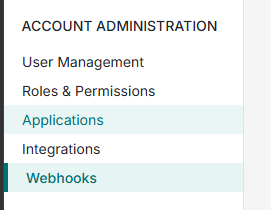
In the menu, find the Account Administration section and click Applications.
Can't see Applications? Your Street user doesn't have the right permissions. Ask a Street admin at your agency to follow this guide, or to give you access under Roles & Permissions.
Create a new application
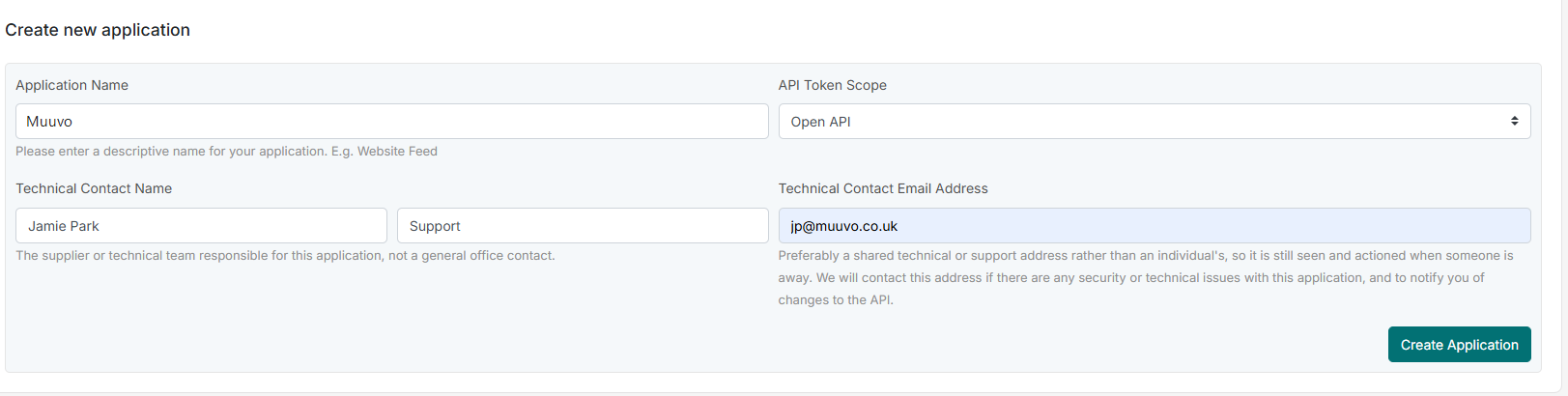
Click Create new application, then fill in the form. Hover over a field below to see where it is on the screen.
 1
2
3
4
5
1
2
3
4
5
Copy your token straight away
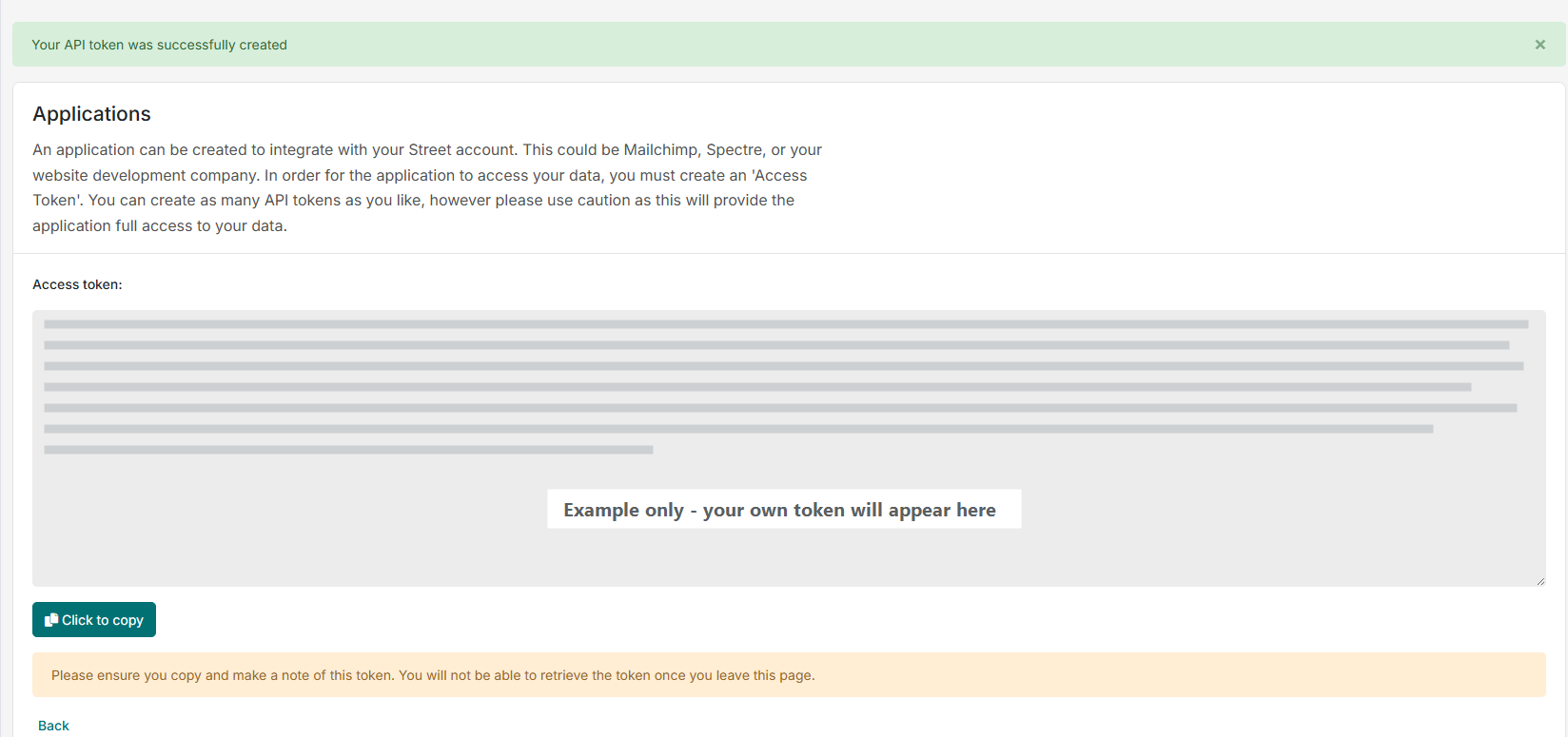
The next page shows your new Access token. Click Click to copy, then paste it into your email to Muuvo before you do anything else.
The token is shown once only. If you leave or refresh this page before copying it, it can't be retrieved and you will need to create another application.
 ✓
✓
Email the token to your account manager
Send the token to your Muuvo account manager. They will activate your account in the Muuvo admin area and confirm when you're reconnected.
Paste the token into an email and send it to your account manager.
Your account manager adds the token to your account in the Muuvo admin area.
Your Street data starts flowing to Muuvo again.
Paste this into your email, then replace the highlighted line with the token you copied in step 4. Only send the token to your Muuvo account manager.